
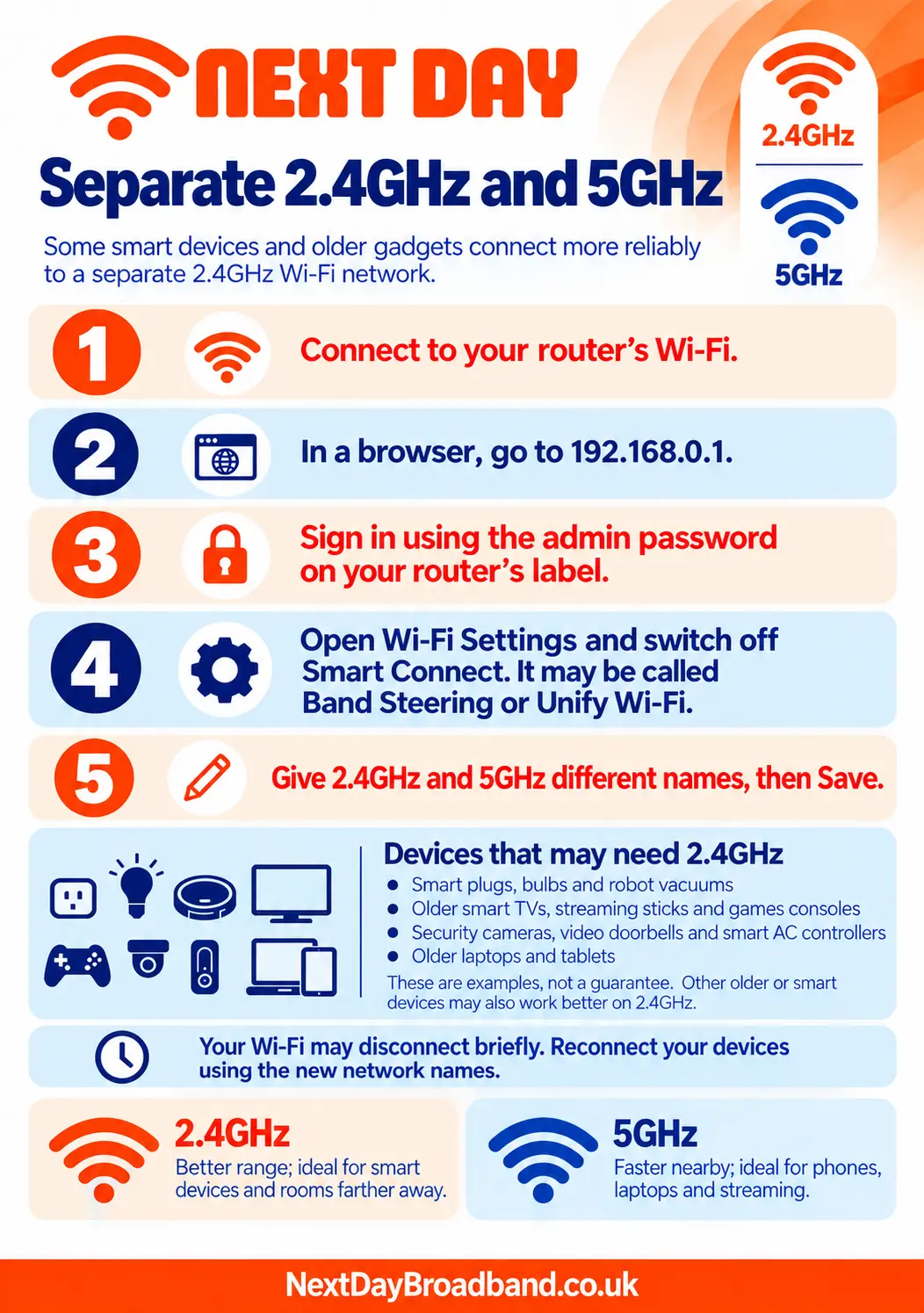
Separate 2.4GHz and 5GHz for Easier Connections Why Your Devices Might Not Connect (And How to Fix It) When your Next Day Broadband router arrives, it is set up to send out both 2.4G and 5G signals under one single Wi-Fi name. While this sounds convenient, it can cause major issues for older gadgets and smart household tech. Common Devices This Can Happen To: • Smart Air Conditioning (AC) controllers and wall units • Older Smart TVs, Roku sticks, and older Fire Sticks • Smart plugs, smart light bulbs, and robot vacuums • Older laptops, iPads, and gaming consoles • Wireless home security cameras and video doorbells Before thinking your broadband or your device is broken, follow the simple steps below to split your network. It takes less than two minutes and can fix the majority of device connection issues. How to Separate Your Wi-Fi Networks Follow these simple steps to split your Wi-Fi into two separate signals: 1. Connect to the router: Make sure your device is currently connected to your router's Wi-Fi. 2. Open the login page: Open a web browser (like Chrome or Safari), type 192.168.0.1 into the top address bar, and press Enter. 3. Log in: Enter the admin password. You can find this password printed on the sticker underneath the base of your router. 4. Find Wi-Fi Settings: Click on Wi-Fi Settings on the main screen. 5. Turn off Smart Connect: Look for a setting called Smart Connect (it might also be called Band Steering or Unify Wi-Fi). Switch this setting to Off or Disabled. 6. Rename the signals: You will now see two different network boxes. Give them separate names so you can tell them apart. For example: • Change the first one to: MyHomeWiFi_2.4G • Change the second one to: MyHomeWiFi_5G 7. Save: Click Apply or Save. Note: Your internet will cut out for a moment. Just go to your phone or computer's Wi-Fi settings, and log into whichever new network name you want to use. Customer Guide: 2.4G vs 5G Wi-Fi Now that your signals are split, you can pick the best one depending on what device you are using and where you are standing. The 2.4G Signal (The Distance Signal) What it does: This signal is slower, but it travels a very long way. When to use it: This can be ideal for smart home tech (like your AC unit), or when you are far away from the router, upstairs, or out in the garden. It easily pushes through thick brick walls and heavy doors. The 5G Signal (The Speed Signal) What it does: This signal is incredibly fast, but it has shorter range. When to use it: Use this for your phone, main TV, or laptop when you are closer to the router. It is perfect for watching HD TV or gaming, but a single thick wall can block a lot of its strength. For more support, visit nextdaybroadband.co.uk.
Back to Support Centre
Everyday Broadband+
Separate 2.4GHz & 5GHz Instructions
Learn how to split your routers 2.4GHz and 5GHz Wi-Fi bands into seperate network names, so you can choose which one your device connects too.
Still have questions?
Can't find what you're looking for? Our support team is here to help.